Click here to return to main contents page

Your eMerchantClub eCommerce website is packed with features that give you all kinds of control and flexibility over your store. There are so many features that it can be overwhelming when you initially open your Site Manager. Looking at all of the links, you might wonder, where do I start? This article will give you a good roadmap for understanding some of the fundamental functionality of your site.
When you first log in to your Site Manager, you’ll see a screen which looks similar to this:

A good place to start is to check to make sure that your store name and contact information is correct. Click on Store Profile under the Appearance section. Next, click on Store Name, Home Page Intro, Store Directory. The Store name field on this page should contain your business name. This text will prominently be displayed on each page of your site, typically on the top left. This field also allows you to format your store name by using the buttons on the top of the field. You can change the color, font and size. Be careful when doing this because your store’s layout already has specific styles especially designed to look good for your chosen layout.
Next, click on the Store Profile link on the left side of your screen. Then, click on Contact Us. Your contact information should be placed in this screen. Make sure that the information here is up-to-date. Also, each of the phone number and address fields has a display checkbox. Make sure that only the information you want displayed is being shown on your storefront.
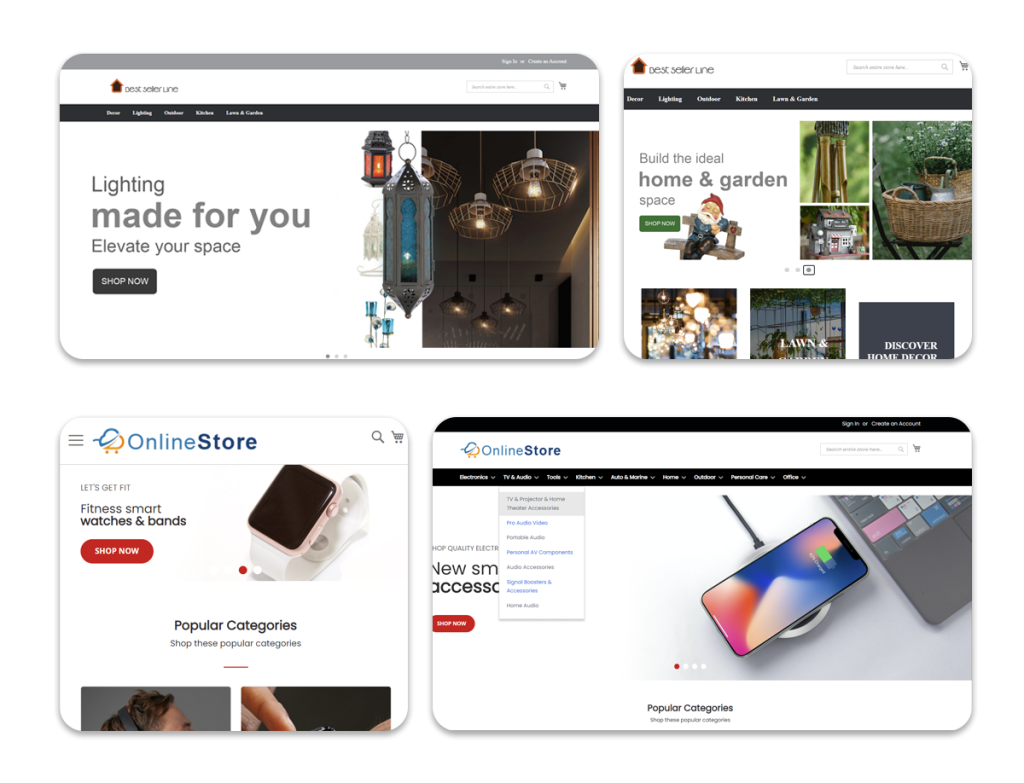
Once this is done, the next important step is to be sure that your store has the look and feel that you like. Your site’s layout can very easily be changed in the Style & Color section. Under the Appearance section, click on Style & Color, and then click on Store Layouts. Here, you’ll find several professional layouts to choose from.
To change the look of your storefront, select the radio button above your desired layout and click Apply. The Version 10 Layouts, which are layouts 86 through 95, contain the newest features, such as the dynamic animated widgets, however, you can choose any of the layouts that are available.
If you’ve chosen a Version 10 layout, then after applying the layout, you’ll see the Layout Settings page. Here, you can add widgets to your layout, such as animated product carousels, image sliders, dynamic accordion menus, and more. For more information on the Version 10 Layouts and dynamic widgets, click here to view our article on Version 10 dynamic animated content or click here to view the online manual page.
Next, you can further customize your store by going to Appearance > Customize Storefront. In this section you can do things such as select home page items, choose which modules to show on your home page, set up your department navigation bar, select featured departments, and select a pagination style. Depending on which layout you have applied to your site, different options will be available here. Some options will be grayed out as different layouts support different functionality. For more information on the Customize Storefront functionality, see the manual page on this topic.
Next, click on the Products tab on the bottom of the page.
This section lists all of your products. If you have an eMerchantDeluxe website, then nearly 3,000 products will be listed here. From this section, you can add and delete products, edit product descriptions, hide unavailable products and more. It is important to be familiar with this screen as this is the central place from which you will manage your products. For more information, click here to view the manual page regarding the Products section.
Clicking the Departments button on the left menu takes you to the page from which you can manage all of your departments. Your site is already pre-loaded with departments. There are two types of departments, the parent departments and the child departments. Each one of your products is placed within a child department. Each child department belongs to one parent department. The parent department is the large category which typically contains multiple child departments. An example parent department is Home Décor Collections. This is a broad category which contains more specific child departments, such as African Décor, British Colonial Décor, and Pet Lover Décor. From the Departments screen, you can tell which departments are which by looking at the Parent Dept Id and the Parent Dept Name columns. If a department is a parent department, then the Parent Dept Id will be 0 and the Parent Dept Name will be blank. Remember, your site is already loaded with the appropriate departments, so you will only need to be concerned with this if you’d like to edit the names of the departments or add your own departments for your own products. For more information, click here to view the manual on the Departments section.
Next, click on the Sales button on the bottom of the page and then click on the All Registered Shoppers link. This page will list all of the shoppers who have registered on your site. Clicking the Edit link next to a registered shopper will bring you to that shopper’s details page. Here you can see the shopper’s contact information, change their price quote type, view their past orders, view the items currently in their shopping cart, and more. For more information on the Shopper Details screen click here to view the manual page.
Next, click the Orders button on the left side of the screen and then click on All Orders. This page will list all of the orders your site has received within the date range which is specified. When your website receives an order, the new order will appear on the All Orders page. Clicking the Details link in the View Order column will bring up the screen which will show the items which have been ordered.
Once an order is placed, you need to verify that the order has been paid for by either checking your PayPal account or checking with your gateway provider.
Once this is verified, you will need to fulfill the order. If the order contains SMC products, then you can use the Submit order section of this page to begin the order fulfillment process. There are two Submit order methods. Submit order to process submits your order to eMerchantClub, who will enter your order on smcorp.com for you. This adds 1-2 business days to the order processing time. Copy order to SMCORP cart copies all of the products in the order to your smcorp.com shopping cart. You then need to sign in to smcorp.com and complete the order. For more information on the All Orders page, click here to view the manual page.
Next, click on the Shipping button on the left side of the screen. From here, you’ll control how much your site charges for shipping. The SMC shipping method allows you to charge the same as SMC will charge you for shipping. For more information on this option, click here to view the manual page.
The Custom shipping method allows you to create your own shipping rate table. For example, you can specify that if an order falls between $10.01 and $25, then charge $10 for shipping. Here’s an example of a shipping rate table:
For more information on the Custom shipping method, click here to view the manual page.
The Classic shipping method also allows you to create a shipping rate table. With the Classic shipping method, you can also create shipping options which charge a certain percentage of the shopper’s total order. Click here to view the Classic shipping manual page.
Additionally, you can also choose to allow free shipping on all orders by using the Free Shipping method. Click here for the manual page.
Next, click on the Sales Tax button on the left side of the screen and then click on State/Province Tax. Here, you can enter a state and the tax rate which should be applied to shoppers from that state. Your website will only charge sales tax to shoppers from the states which are entered here. You should do some research or contact your state tax board to find out for which states you need to charge tax. For more information, click here to view the manual page on the Sales Tax section.
The Marketing section of your Site Manager contains some extremely effective tools. The Promotions section allows you to create price promotions such as Buy 2 for the price of 1 and many other options. In this section, you can also create shipping promotions, coupon promotions, upsell and cross promotions, and also abandoned shopping cart promotions (if you have an eMerchantDeluxe website). Each of these is a powerful tool which can be a great benefit to your sales efforts. For more information on each of these promotions, click here to view the manual page.
This article has discussed the basic and fundamental functionality of your eCommerce website. These comprise the bare-bones essentials that you will need to be aware of to operate your site. In addition to these, your website is packed with further features and tools that can be used to manage and elevate your business.
Click here to read this month’s article which discusses some further features your website has to offer.
If your site does not include some of the mentioned features, give us a call at (888) 806-2081 for information on getting these features.
As always, if you have any questions please contact Technical Support via e-mail at techsupport@emerchantclub.com by going to Live Chat Technical Support at http://www.emerchantclub.com/support.html or by calling (877) 384-4691.
Thank you,
Your eMerchantClub Team
eMerchantClub LLC
996 Flower Glen Street
Simi Valley , CA 93065
(877) 384-4691 Phone
(888) 201-2680 Fax
Click here to return to main contents page
Click here to view previous newsletter articles